

Accessible Content Guide

Accessible content is better for everyone, and as part of Suffolk University’s commitment to accessibility, we want to ensure that our community has all the resources they need to make top quality documents.

Where Should I Start?

Accessibility is a broad topic, but fortunately some of the highest impact things you can do are also the easiest! To start:

  1. Make sure all your text is selectable so that it can be searched and read by machines.
  2. Give your files clear names and organize them in a way that’s easy to navigate. Canvas has many tools that make this easy.
  3. Add alternate (alt) text to your images and figures when applicable.

Just doing these three things will make your documents significantly more accessible, and from there, all you need to do is use an accessibility checker to get them the rest of the way there. Everything you need to make your Word Documents, PDFs, and PowerPoints accessible can be found here, with specifics on how to fix documents by type, found in the right-side margin of this page.

The Office of Disability Services can help answer questions and provide consultation, so don’t hesitate to reach out!

Contact us at: [email protected]
General Accessibilty Principles

Accessible content is better for everyone, and as part of Suffolk University’s commitment to accessibility, we want to ensure that our community has all the resources they need to make top quality documents.

Not all digital text is accessible. For text to be accessible, it must be selectable.

A simple trick you can use to test if text is accessible is to select it with your mouse and then paste it somewhere else (like a Word document or .txt file). Then:

  • If the text you pasted was the same as the text you copied, then it should be good to go from an accessibility standpoint.
  • If the text you pasted is different than the text you copied, it’s likely the text is corrupted and inaccessible.
  • If the titles and logos in your document cannot be selected, add alt text for them (which in this case is just the text in quotation marks).
  • If the main text in your document cannot be selected, you can fix it with Optical Character Recognition (OCR). OCR is a tool that you can use to convert images of text to digitally native text. Even if you don’t have Adobe Acrobat, you can use Adobe’s online OCR tool.

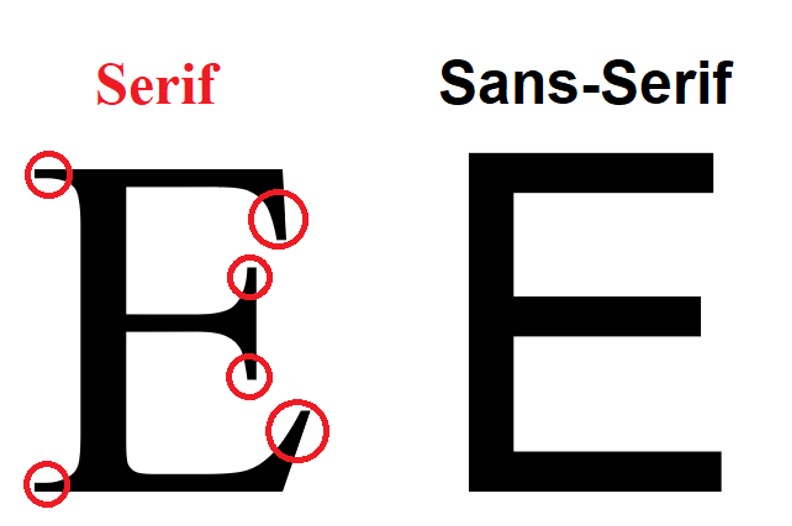
Sans-serif fonts (meaning, fonts without embellishments) are generally more accessible than serif fonts. Serif fonts don’t just include overly indulgent fonts, but also include favorites such as Times New Roman. You can identify a serif font by looking for the little lines coming off each letter – for instance, see:

Serif fonts are embellished, sans-serif fonts are not.

While Optical Character Recognition (OCR) is improving, serif fonts are more difficult for machines to recognize than serif fonts which can hinder assistive technology. Additionally, those with learning disabilities may have more difficulty reading serif fonts.

Sometimes color contrast issues are glaring and easy to notice, but not always. Use WebAIM’s contrast checker to find out!

The contrast checker will allow you to use an eyedropper tool to grab colors on Google Chrome and Microsoft Edge browsers. On other browsers you will need to input the hex value of the color you want to check.

Finding the hex value is different in all programs, though typically it requires you to go into “custom colors” and open the color editor.

Some images need alternative (alt) text, but not all! You only need to add alt text to images that are necessary to understand the content. Other images can be flagged as decorative, or marked by using empty quotation marks (“”) as alt text.

For images that are required to understand the content, alt text needs to be useful first and foremost. Make sure that your alt text:

  1. Is short and to the point.
  2. Avoids “picture of” or “image of.” People viewing alt text will already know it’s an picture.
  3. Uses empty quotes – “” – to signify that images are purely decorative. Think about why you’re including the image, and more images than you expect will fall under this category of pure decoration.
  4. Is not AI generated. Automatically generated alt text is often too verbose and misses the point of why you included the image. A short sentence you write is much more useful than a paragraph written by a chatbot.

For instructions on how to add alt text, please use the navigation bar on the right and select the program you’re working with.

Information about how to use alt text on popular social media sites can be found here:

There are also two types of images you should pay special attention to: images of text, and charts.

Images of text should be avoided whenever possible. In the instances they cannot be avoided, like logos, Alt text for images of text should simply be that text in quotation marks.

Charts can be difficult to develop alt text for as they are very information dense; because of this, tables should be used as a supplement or substitution whenever possible. If you are supplementing your chart with a table that has the same data, the chart can be marked as a decorative image. If you cannot provide a table, charts are one of the rare instances where you can disregard the “don’t use AI for alt text” rule; asking a chatbot to describe your chart can be a good place to start. However, as with anything AI generated, be sure to keenly scrutinize the output for inaccuracies.

Math online usually is written in one of two ways, either using LaTeX or MathML. While both of these methods produce equations that look good visually, LaTeX math does not always work with many accessibility programs and may be inaccessible to screen reader users.

To ensure that your math is accessible, it’s ideal that you use MathML. All Suffolk students, faculty, and staff have access to Equatio which can either be downloaded onto your desktop to work with Microsoft Word or installed as a browser plugin to work with Google Docs. Equatio makes it easy to create MathML equations, through typing, drawing, or even dictation. It can also convert LaTex to MathML.

If you have documents that are already in LaTeX, they might not be inaccessible. Microsoft products will read LaTeX in default math format, OMML, which is accessible. Though if the document is then converted to a PDF, the math will no longer be accessible.

If you aren’t sure whether your content is accessible, there are a number of quick and easy ways to check. Many programs have built-in accessibility checkers, including the programs in the navigation bar to the right, where we’ve included step-by-step instructions on how to use them and correct any issues they flag.

  • PDF
  • PowerPoint
  • Word

If there is anything you are ever unsure about when it comes to accessibility, the Office of Disability Services can be a resource! Be sure to contact us at [email protected].

AI has a number of practical uses when creating accessible content, but it has an equal number of pitfalls. Here are a few of the things it does well, and a few things it does poorly.

AI is good at

  • Turning pictures of words into selectable text, also known as optical character recognition. If you have a scan from a book or article, asking an AI chatbot is a great way to turn that picture into selectable text.
  • Summarizing graphs and charts. Creating summaries for these information heavy images is a great first step to writing alt text for them. This is the only area where AI generated descriptions are actually helpful.
  • Creating proof of concept documents. While still in the planning stage, AI can help you visualize a direction for how to build content.

AI is bad at

  • Creating final documents. AI generated documents are generally not accessible and require significant work to be made so. They should not be shared with students.
  • Writing alt text. While AI can be used as a starting point for alt text, you should not rely on it. Alt text generated by AI is often overly verbose and does not contain the critical context of why an image is relevant to the text.
  • Language choice. Chatbots can sometimes generate text that is unintentionally ableist. Try to avoid using AI when writing about people with disabilities or talking about accessibility.

You should always be cautious using AI, and this is especially true when accessibility is a concern. The more you learn about accessibility though, the more you’ll be able to benefit from AI without it leading you astray.

Zoom in general is a very accessible platform, but there are a couple things to keep in mind when using it.

Enable captions for your meetings. Captions help students follow along with the discussion more easily, especially students who have disabilities or are non-native English speakers.

Provide any material you plan on screen sharing ahead of time. This is especially important for students who use assistive technology like text-to-speech, or students that may need more time to familiarize themselves with content.

If your course is online, we also recommend seeing our page on Canvas for tips on how to make the most of the platform. for tips on how to make the most of the platform.